
How to Manage Multiple Google Sheets from a Single Chat
2026-02-12
How to Manage Multiple Google Sheets from a Single Chat
As your business grows, one spreadsheet is rarely enough.
You might have:
- An Expense tracker
- A Client CRM
- An Inventory log
- A Sales sheet
Managing all of them separately quickly becomes messy.
Switching between apps.
Opening different files.
Forgetting where to log something.
This guide shows how to control multiple Google Sheets from a single Telegram chat using Chat2Sheet’s intelligent #keyword routing.
If you’re new to conversational spreadsheet automation, start here:
→ How to Automate Data Entry into Spreadsheets via Text
One Chat, Unlimited Sheets
Traditional automation tools require:
- Separate workflows
- Different integrations
- Manual configuration per sheet
Chat2Sheet simplifies everything.
You keep using one Telegram conversation,
and AI automatically sends each message
to the correct spreadsheet or tab.
No switching.
No extra setup.
No confusion.
Just one chat controlling your entire data system.
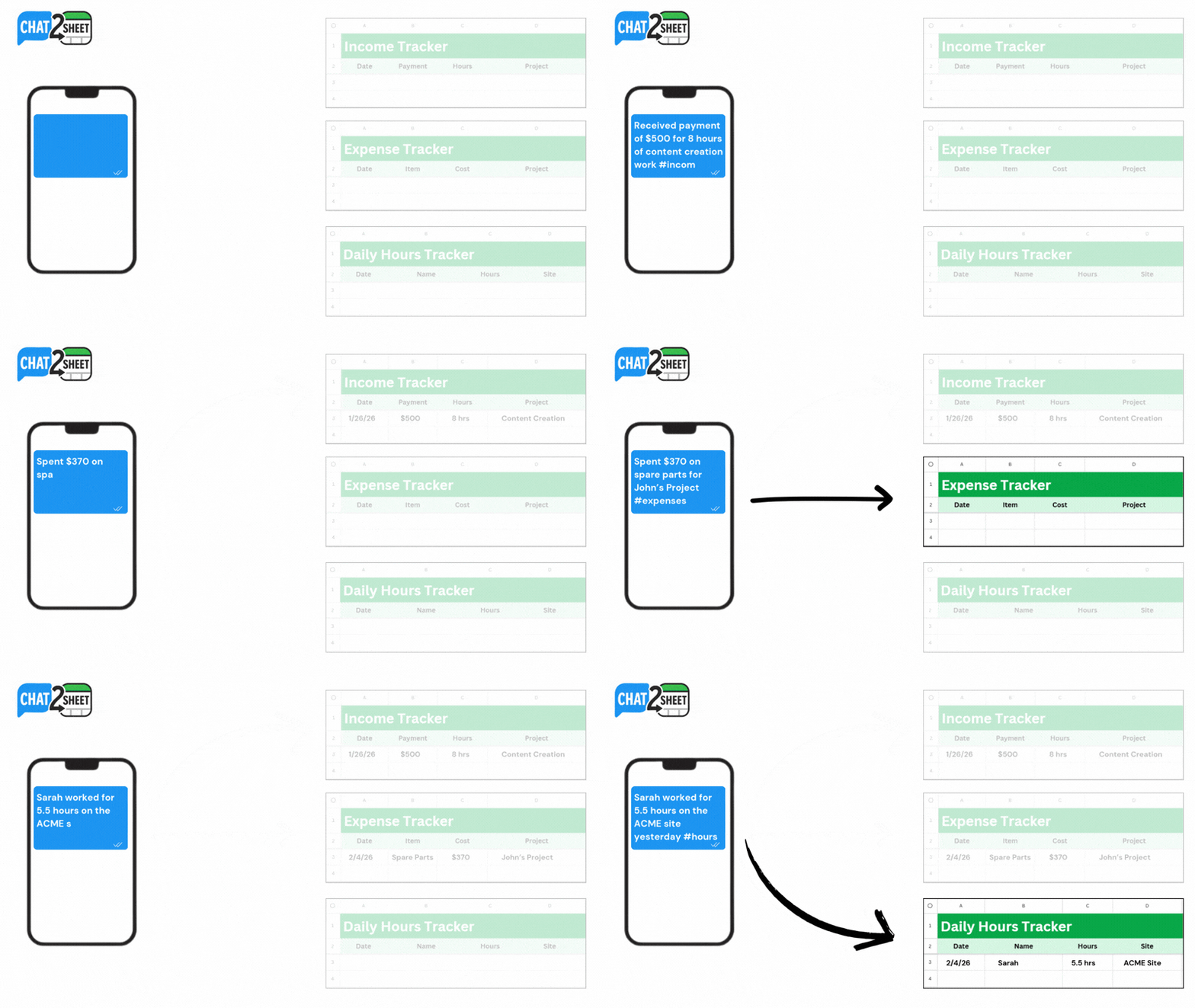
How #Keyword Routing Works
Routing is controlled by simple hashtags at the start of your message.
Each hashtag tells Chat2Sheet:
“Send this data to a specific sheet or category.”
Example messages
Expense logging
#Expenses $15 for lunch today
→ Automatically logged in your Expense sheet.
Client updates
#Clients Onboarded Mark at the $500 tier
→ Sent to your Client CRM sheet.
Inventory tracking
#Inventory Added 40 organic soap units
→ Logged in your Inventory sheet.
No menus.
No dropdowns.
No manual switching between files.
Just one word at the start of your message.
Why Multi-Sheet Routing Matters
This feature becomes powerful as soon as your workflow grows beyond a single tracker.
1. Stay organized without switching apps
Everything flows through one conversation,
so logging data stays fast and consistent.
2. Scale from personal use to real business operations
You can manage:
- Personal expenses
- Business revenue
- Client pipelines
- Product inventory
All from the same chat interface.
3. Reduce mistakes and forgotten entries
When logging data takes only a few seconds,
you actually keep every system updated.
That consistency is what makes spreadsheets valuable.
Best Practices for Setting Up #Keyword Routing
Follow these simple tips for clean organization:
Use clear, simple hashtags
Good examples:
#Expenses#Clients#Inventory#Sales
Avoid long or confusing names.
Match hashtags to sheet names or tabs
Keeping names aligned makes your system:
- Easier to remember
- Faster to use
- Simpler to scale
Start simple, then expand
Begin with 2–3 core sheets, such as:
- Expenses
- Clients
- Sales
Then add more as your workflow grows.
Build a Fully Routed Business Workflow
Once routing is set up, you unlock a powerful real-time system:
-
Log expenses instantly
→ Personal Expense Tracker Template -
Track leads in a mobile CRM
→ How to Build a Mobile CRM Using Telegram and AI -
Set everything up in under two minutes
→ Ultimate Setup Guide
Together, these create a complete AI-powered operating system for your data.
Related Guides to Extend This System
Once routing is configured, you can:
-
Log entries hands-free using voice →
How to Update Google Sheets Using Only Your Voice -
Connect your full workflow in minutes →
Ultimate Setup Guide -
Send natural messages straight to Google Sheets →
How to Sync Telegram Messages to Google Sheets Automatically
This turns one chat into a fully organized multi-sheet data hub.
Final Thoughts
Managing multiple spreadsheets shouldn’t require:
- Multiple apps
- Complex automations
- Constant switching
With Chat2Sheet’s #keyword routing,
your entire workflow lives inside one simple chat.
One message.
One hashtag.
Perfectly organized data everywhere.
To understand the bigger shift toward conversational spreadsheet automation, read the full guide:
→ How to Automate Data Entry into Spreadsheets via Text
Ready to Control All Your Sheets From One Chat?
Stop jumping between spreadsheets.
Start routing your data with a single message
—and let AI keep everything organized.